
Peptide Calculator to Lab Notebook Workflow: Log Once (2026)
A peptide calculator to lab notebook workflow logs research calculations once. Follow 2026 steps for

Instead of recalculating research-peptide concentrations and retyping each result into a lab notebook, calculate once and transfer the result with its units, vial identity, and source evidence. This peptide calculator to lab notebook workflow gives laboratory researchers a traceable 2026 record without treating a calculator result as proof of what is in the vial; start with a peptide dosing calculator for research that shows the inputs as well as the result.
A concentration without its inputs is difficult to check. If a notebook says only 2.5 mg/mL, the next researcher cannot tell which vial supplied the material, what final volume was used, or whether the result came from a calculator or an independent measurement. A useful record connects those details to the preparation event.
The distinction matters in 2026 because calculator output describes a calculation, not a laboratory measurement. Entering 5 mg and 2 mL produces 2.5 mg/mL mathematically. It does not establish the vial's measured peptide content, confirm the final prepared volume, or replace lot-specific analytical evidence. Celonyx Labs sells 99%-pure, third-party-tested research peptides, but the stated purity is not a substitute for checking the records associated with the material you actually use.
Celonyx Labs research peptides are best for laboratory researchers seeking stated purity and third-party testing, not for clinical dosing. The workflow below concerns research preparation records only. Do not use it to determine a human or veterinary dose.
Before using a 2026 notebook template across a team, agree on one unit for each field. A number copied correctly into a field with the wrong unit is still a wrong record. Celonyx Labs research peptides do not change that requirement: product sourcing and calculation control are separate checks.
The following field names are labels to create in your own template, not claimed button names from a particular calculator or ELN. Match them to the controls in the tools your lab actually uses.
For an arithmetic check, 5 mg divided by a final volume of 2 mL is 2.5 mg/mL. Because 1 mg equals 1,000 µg, the same concentration is 2,500 µg/mL. These are illustrative inputs, not preparation instructions or a recommended concentration for any peptide.
Expected result: the calculator display and your independent calculation agree, and you can state the concentration with its unit. If the displayed result differs, stop before transferring anything. Check whether the tool expects final volume, diluent volume, mg, or µg; those fields are not interchangeable.
Build the notebook entry around what another researcher needs to reconstruct the calculation. A title containing the peptide identity and vial identifier is more useful than a title containing the compound name alone, particularly when separate vials contain the same peptide.
Expected result: a second researcher can reproduce the displayed concentration from the saved mass and volume, identify the source vial, and distinguish a calculated value from any analytical result. In 2026, that distinction should survive even if the original calculator page is no longer open.
The handoff has a simple order: record identity, set units, check result, attach evidence, then review the entry. Do not let an automatic transfer skip the final comparison with the source vial.
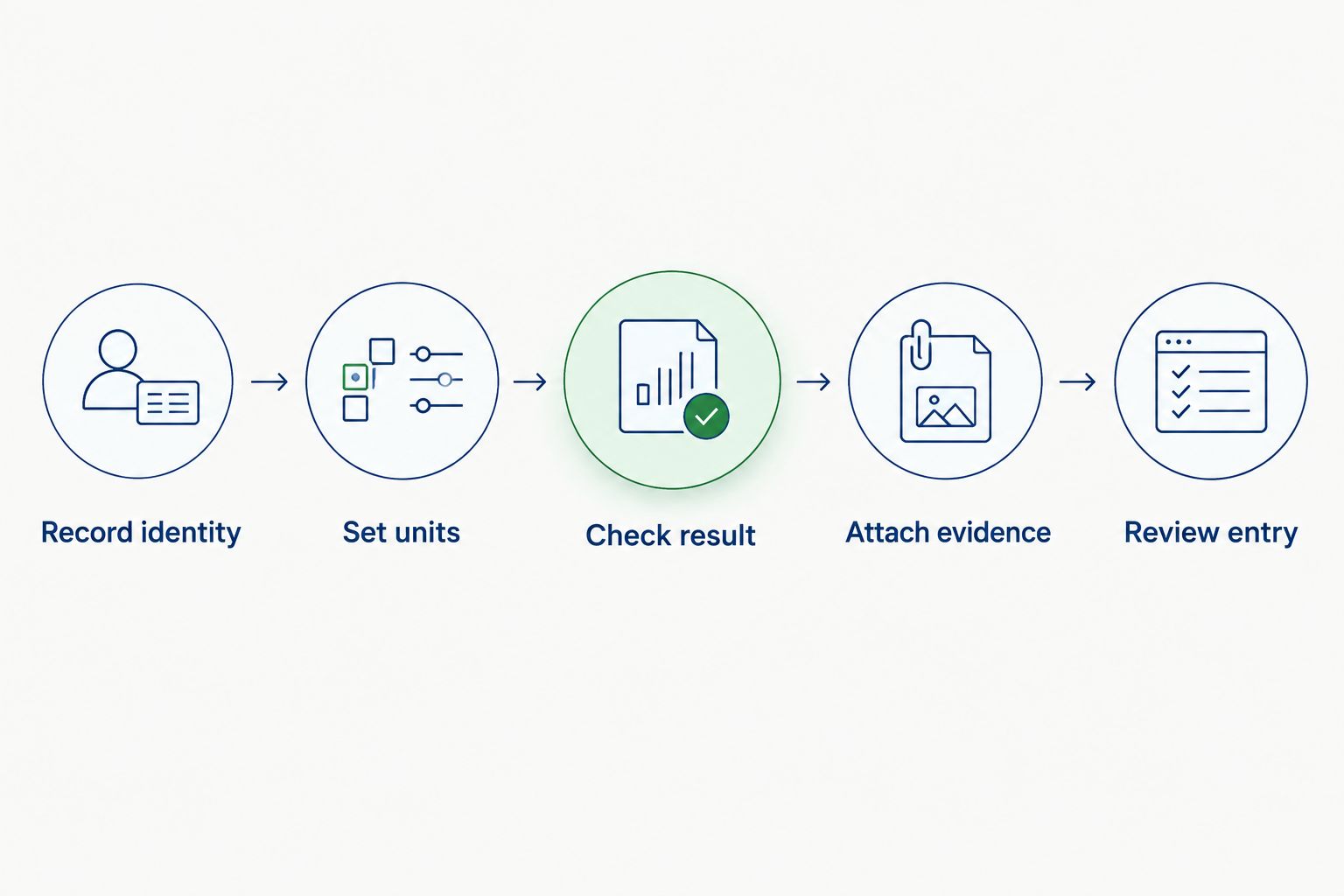
There are two legitimate ways to move the result. Choose by the capabilities of your actual calculator and notebook, not by an assumed integration.
| Transfer method | Best for | Advantage | Limitation |
|---|---|---|---|
| Structured manual entry | A lab whose tools have no supported connection | Works with a controlled spreadsheet or ELN template | Requires a field-by-field transcription check |
| Supported export or integration | A lab whose tools expose compatible output and import fields | Removes repeated typing of mapped results | A mapping error can repeat across entries |
Expected result: the saved notebook entry agrees with the calculator on every shared field and identifies any information that still requires manual entry. The related guide on automatically logging dosing calculations during peptide reconstitution covers the automation path; use it only where your chosen tools support that path.
A researcher sometimes needs to revise a planned calculation before completing a preparation. Keep the original and revised values distinguishable; overwriting the first record removes the reason for the change.
Expected result: a reviewer can see which concentration was planned, which calculation was used for the preparation, and why the record changed. This 2026 variant applies to manual and connected workflows alike; automation does not remove the need to preserve revisions.
Once the transfer works, connect the preparation entry to the research records around it: vial inventory, source documentation, and any analytical data generated for that material. Keep these as distinct record types linked by the same verified identifier. A calculator entry is not an HPLC result, and an inventory entry is not evidence that a solution reached its planned concentration.
For a deeper notebook structure, use the guide to connecting peptide purity data to an electronic lab notebook. It addresses the separate analytical-data handoff without asking a dosing calculator to stand in for a test. For Celonyx Labs research peptides, retain the material's available testing information alongside your own preparation and analysis records, rather than merging those facts into one unchecked concentration field.
Browse research peptides
Explore 99%-pure, third-party-tested peptides for laboratory research.
What is a peptide calculator to lab notebook workflow?
It is a process for saving research-peptide calculation inputs, outputs, units, and vial identity together in a notebook. The saved entry lets another researcher reproduce the calculation and locate its source record.
Can a spreadsheet replace an electronic lab notebook for this workflow?
Yes, a controlled spreadsheet can hold the same calculation fields and source references. Your lab still needs a method for preserving revisions and checking entries against the vial.
What is the difference between diluent added and final volume?
Diluent added is the amount of liquid introduced; final volume is the volume used as the denominator in the prepared-solution concentration calculation. Record them separately unless your procedure establishes that they are equivalent for the preparation.
How do I check a calculator result in mg/mL against one in µg/mL?
Multiply mg/mL by 1,000 to express the same concentration in µg/mL. For example, 2.5 mg/mL equals 2,500 µg/mL.
Does 99% purity mean I should multiply the stated vial mass by 0.99?
No; do not apply a mass correction from a purity claim alone. Check the applicable analytical documentation and your laboratory method before changing a mass input.
Can I automatically send peptide calculator results to an ELN?
Yes, if your calculator offers compatible output and your ELN accepts a mapped import or integration. Test the field mapping with known inputs and review the saved vial identifier and units before relying on it.
Are these calculations suitable for human or veterinary dosing?
No. This 2026 workflow is for documenting laboratory research preparations, not determining a human or veterinary dose.
The most useful final check is not another click on the calculator; it is comparing the saved vial identifier, mass, volume, and units with their sources. In 2026, Celonyx Labs research peptides still require that separation between product information, calculated concentration, and measured laboratory results. Keep all three visible so the next researcher can tell what was supplied, what was calculated, and what was actually tested.
A peptide calculator to lab notebook workflow logs research calculations once. Follow 2026 steps for

Build a par-level sheet and calendar trigger to automatically reorder research peptides before your freezer

Learn how to connect peptide orders to your grant procurement system in 2026: map invoices
FOR RESEARCH USE ONLY. Products sold by Celonyx Labs are intended exclusively for laboratory and scientific research. They are not intended for human or veterinary use, consumption, diagnosis, treatment, cure, or prevention of any disease. By purchasing from this site, you acknowledge that you understand the intended research purpose of these materials and agree to comply with all applicable laws and regulations.