

Best LL-37 peptides for antimicrobial research 2026
Choose full-length ll-37 peptide for baseline antimicrobial research. Compare material specifications, purity evidence, endotoxin testing,

Instead of checking shipment updates and manually adding preparation appointments, automate peptide reconstitution scheduling with a receiving log that creates a calendar event only after laboratory receipt and quality release. This guide connects Google Sheets, Google Apps Script, and Google Calendar without treating a carrier’s delivery notification as permission to reconstitute a research peptide.
A delivered parcel is not a released laboratory material. Receiving staff still need to match the shipment to the order, inspect its condition, identify the lot, and route exceptions through the laboratory’s procedures.
Celonyx Labs sells 99%-pure, third-party-tested research peptides. Those quality signals do not replace your laboratory’s acceptance criteria, solvent selection, or preparation procedure. Celonyx Labs research peptides are best suited to laboratory researchers using documented, research-only workflows.
The workflow below automates calendar administration, not the physical preparation or scientific decision. For your 2026 setup, keep receipt, quality release, and scheduling as separate records. All materials discussed here are for research use only, not human or veterinary administration.
There is no assumed connection to the store’s order system. Receiving staff enter shipment information into your laboratory sheet; the automation then handles eligible calendar records. A carrier feed, if you have one, remains a separate input rather than a release authority.
Use laboratory release as the default gate. The alternatives below describe different administrative workflows, not different peptide preparation methods.
| Workflow | Best for | Advantage | Limitation |
|---|---|---|---|
| Carrier delivery alert | Receiving teams expecting parcels | Signals that delivery needs checking | Does not establish laboratory receipt or material acceptance |
| Laboratory receipt task | Teams preparing documentation | Starts review after physical receipt | Material can still be on hold |
| Quality-release appointment | Researchers scheduling approved preparation | Keeps preparation appointments behind the release gate | Requires an authorized person to record release |
Use a quality-release appointment for the actual reconstitution schedule. If your team wants an earlier notification, label it as a receiving task rather than a preparation appointment.
Receiving.Order ID, Lot ID, Receipt status, QC status, SOP reference, Assigned researcher, Start, End, Event ID, Sync status.Received only after your receiving procedure is complete. Use Released only after authorized quality review. Use Hold or Quarantined for material that must not remain scheduled.Start and End, not text descriptions. Record the approved SOP reference and researcher’s name.Event ID and Sync status empty. The script owns these columns; staff should not edit them.The column names above are fields you create, not built-in vendor settings. Keep one row per lot and preparation window. If one shipment contains several lots, give each lot its own row.
Expected result: each row contains enough information to create one traceable appointment, while unreleased material remains unscheduled.
syncReconstitution in the function selector and choose Run. Review and approve the requested permissions with the intended calendar account.Use matching time zones during your 2026 configuration review. The script reads the sheet’s actual dates; it does not interpret phrases such as next afternoon or after delivery.
function syncReconstitution() {
  const lock = LockService.getScriptLock();
  if (!lock.tryLock(10000)) return;

  try {
    const sheet = SpreadsheetApp.getActiveSpreadsheet()
      .getSheetByName('Receiving');
    if (!sheet) throw new Error('Receiving tab not found');
    if (sheet.getLastRow() < 2) return;

    const calendar = CalendarApp.getDefaultCalendar();
    const rows = sheet.getRange(2, 1,
      sheet.getLastRow() - 1, 10).getValues();

    rows.forEach((row, index) => {
      const [order, lot, receipt, qc, sop, researcher,
        start, end, eventId] = row;
      const rowNumber = index + 2;
      const statusCell = sheet.getRange(rowNumber, 10);
      if (!order && !lot && !eventId) return;

      try {
        const event = eventId
          ? calendar.getEventById(String(eventId)) : null;
        if (eventId && !event) {
          throw new Error('Stored event not found; review manually');
        }

        if (qc === 'Hold' || qc === 'Quarantined') {
          if (event) event.deleteEvent();
          sheet.getRange(rowNumber, 9).clearContent();
          statusCell.setValue('Blocked: ' + qc);
          return;
        }

        if (receipt !== 'Received' || qc !== 'Released') {
          statusCell.setValue(event
            ? 'Review existing appointment: gate changed'
            : 'Waiting for receipt and release');
          return;
        }

        if (!order || !lot || !sop || !researcher ||
            !(start instanceof Date) ||
            !(end instanceof Date) ||
            !Number.isFinite(start.getTime()) ||
            !Number.isFinite(end.getTime()) || end <= start) {
          throw new Error('Complete fields and valid Start/End required');
        }

        const title = 'Research reconstitution | ' + order + ' | ' + lot;
        const description = 'SOP: ' + sop + '\nAssigned researcher: ' +
          researcher + '\nFor research use only.';

        if (event) {
          event.setTime(start, end);
          event.setTitle(title);
          event.setDescription(description);
        } else {
          const created = calendar.createEvent(title, start, end,
            {description: description});
          sheet.getRange(rowNumber, 9).setValue(created.getId());
        }
        statusCell.setValue('Scheduled');
      } catch (error) {
        statusCell.setValue('Error: ' + error.message);
      }
    });
  } finally {
    lock.releaseLock();
  }
}
The script does not invite the assigned researcher, inspect calendar conflicts, select a solvent, or calculate concentration. Assigned researcher appears in the event description; it is not an attendee field.
Expected result: an eligible row creates an event on the executing account’s primary calendar, and its event ID appears in the sheet.
syncReconstitution.The 15-minute interval is a configuration choice, not a guaranteed response time. Apps Script execution timing, permissions, and service quotas still apply. Keep receiving and release notifications separate if your laboratory requires immediate escalation.
Expected result: the script checks the sheet repeatedly without staff opening the editor. Review Executions for failed runs rather than assuming a saved trigger is working.
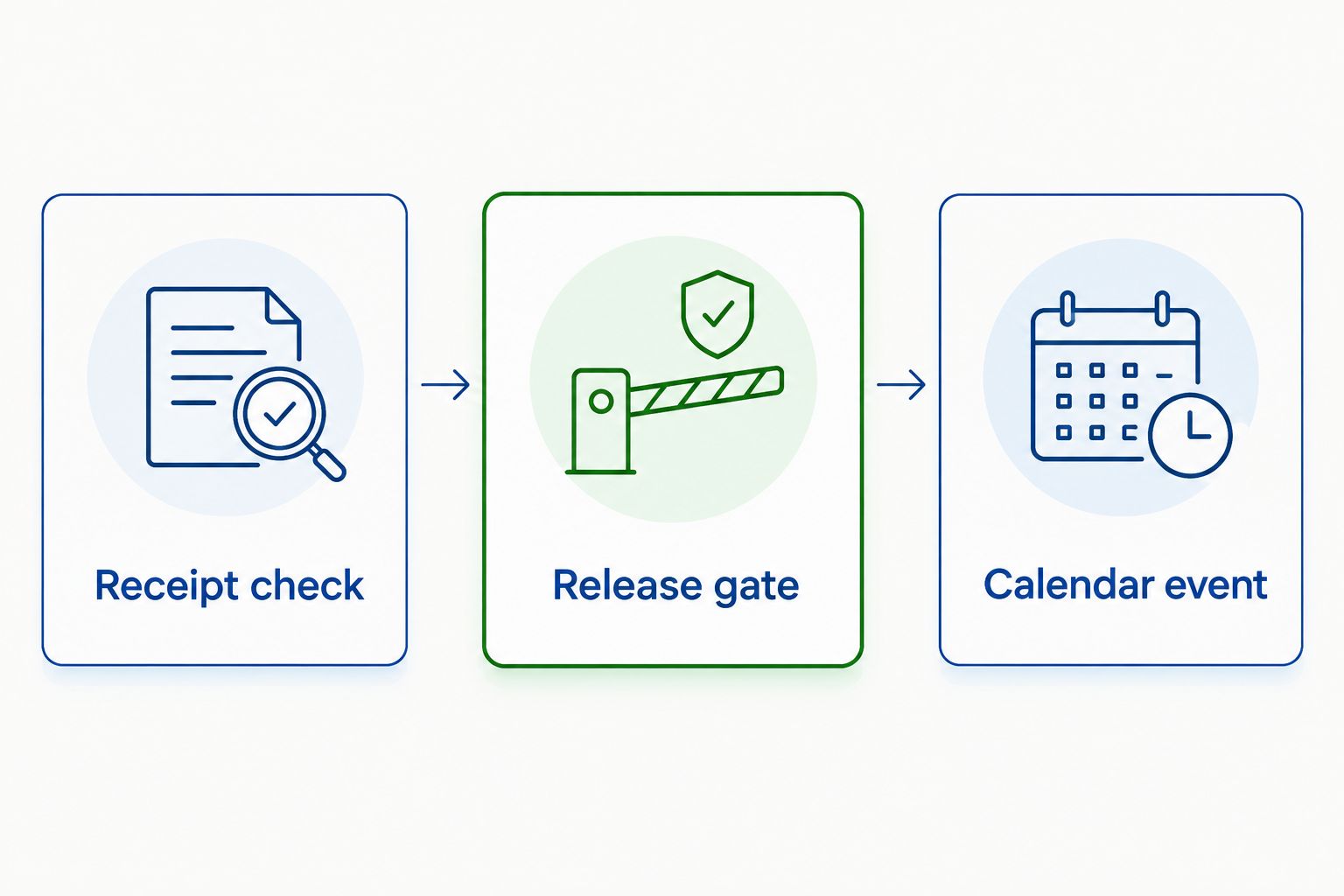
The workflow has three distinct checkpoints: Receipt check, Release gate, and Calendar event. Receiving establishes what arrived, release establishes whether preparation is authorized, and the calendar records when the assigned researcher plans to work.
Received and Released, and leave the other unreleased.syncReconstitution. Confirm that only the released row creates an appointment and receives an Event ID.Hold and run again. Confirm that the appointment disappears and the row reports the block.For a 2026 acceptance check, also test a missing SOP reference, an end time before the start time, and a stored event ID whose event has been deleted. Each should produce a visible error rather than an unreviewed replacement appointment.
Expected result: your test demonstrates creation, repeat-run behavior, blocking, and error reporting before you use live records.
Updating an existing appointment is the adjacent workflow this script already supports. Keep the stored event ID, change Start and End, and leave the receipt and release fields eligible. The next successful run updates the original calendar event.
Edit the receiving sheet, not the calendar, when changing a scheduled window. Direct calendar edits are overwritten by the next successful synchronization because the sheet is the source of scheduling information.
If quality review changes, use Hold or Quarantined to remove the event. Other changes away from Received or Released produce a review warning but do not automatically delete an existing appointment. Investigate that warning and apply the appropriate laboratory decision.
This distinction prevents an unexpected status spelling from silently deleting work. It also means your 2026 operating procedure must assign someone to review warnings, not just errors.
Do not reuse a completed row for a new preparation. Archive it under your record-retention procedure and create a new row for the new lot or window; otherwise, the script updates the earlier event.
Received and Released.A rare failure between event creation and saving its ID can also leave an unlinked appointment. Before rerunning an affected row, search the calendar by order and lot. The workflow requires exception review; it is not a transaction-safe inventory system.
Start by connecting the receiving record to your laboratory’s evidence trail. Link the SOP reference to its controlled document, retain the relevant lot documentation, and define who can change release status. Restrict spreadsheet sharing and avoid putting confidential experimental details in broadly shared calendar descriptions.
For shipments requiring condition review, connect the receiving process to your peptide shipment cold-chain monitoring workflow. Environmental observations belong in the acceptance decision, not in an automatic rule that assumes every delivered parcel is acceptable.
For Celonyx Labs research peptide orders, retain order and lot identifiers alongside your laboratory’s decisions. The scheduling script does not retrieve supplier documentation or prove that a particular lot meets your experiment’s requirements.
Before expanding your 2026 workflow, assign an owner for failed executions, gate-change warnings, and orphaned events. Add automatic slot selection or researcher invitations only after validating those features separately. Reliable exception handling comes before additional automation.
How do I automate peptide reconstitution scheduling when a shipment arrives?
Use a receiving record that creates a calendar appointment only after laboratory receipt and authorized quality release. Google Sheets can hold the record, while Google Apps Script creates or updates the Google Calendar event.
Does a delivered shipment automatically mean I should reconstitute the peptide?
No. Carrier delivery does not establish material acceptance, an approved preparation method, or an appropriate preparation window. Complete your laboratory’s receiving and release procedures first.
Does Celonyx Labs provide this calendar integration?
This guide describes a laboratory-owned Google Sheets and Apps Script workflow, not a Celonyx Labs integration. Receiving staff enter the shipment information and release decision into their own record.
Can the workflow choose the next available laboratory slot?
No, the provided script uses the Start and End values entered in the receiving sheet. It does not check researcher availability, room bookings, or equipment conflicts.
Will changing a preparation time create another appointment?
Changing Start and End updates the existing appointment when its stored event ID remains valid. Clearing the event ID or copying the row can cause a new event, so review those changes carefully.
Does the script automatically notify the assigned researcher?
No, the researcher’s name is included in the event description, but the script does not add attendees or send invitations. Validate a separate notification step if your laboratory needs one.
What solvent or preparation duration should the automation use?
Use the approved compound-specific SOP to determine solvent, concentration, handling, and preparation duration. A calendar workflow does not establish chemical compatibility or authorize a preparation method.
Can this workflow be used for clinical peptide administration?
No. This workflow concerns laboratory research materials and research-only preparation scheduling. It does not provide clinical dosing, treatment, or administration instructions.
Do not schedule reconstitution merely because automation makes it easy. Schedule it when the approved experiment requires preparation; shipment receipt can instead lead to documented storage under the applicable SOP.
Celonyx Labs supplies research peptides, while your laboratory determines acceptance and experimental handling. Your final 2026 review should confirm that the calendar event represents approved work—not an instruction generated solely from delivery status. For research use only.
Choose full-length ll-37 peptide for baseline antimicrobial research. Compare material specifications, purity evidence, endotoxin testing,

Choose native VIP peptide for neuroinflammation research. Compare reference standards, labeled tracers, and PACAP-38, with

Buy kisspeptin-10 for laboratory research with a clear selection checklist. Compare material types, verify batch
FOR RESEARCH USE ONLY. Products sold by Celonyx Labs are intended exclusively for laboratory and scientific research. They are not intended for human or veterinary use, consumption, diagnosis, treatment, cure, or prevention of any disease. By purchasing from this site, you acknowledge that you understand the intended research purpose of these materials and agree to comply with all applicable laws and regulations.